
One common question businesses ask when configuring commissions in Odoo is:
Can commissions be calculated based on stock availability?
The short answer is:
By default, the answer is NO— Odoo calculates commissions based on actual sales performance, not stock levels. However, the system can be configured to calculate sales commission based on stock availability.
This guide explains:
- How Odoo actually calculates commissions
- Why stock availability is not part of the default logic
- How to properly configure commissions based on real sales metrics
- And how to handle advanced scenarios
The Truth: Odoo Commissions Are Based on Sales, Not Stock
In Odoo, commissions are tied to what is SOLD— not what is available in inventory.
This means commissions are calculated based on sales results, such as:
- Revenue generated
- Units sold
- Profit margin
- Recurring income
Stock availability does NOT determine commissions by default.
Types of Sales-Based Commission Metrics in Odoo
Odoo allows you to calculate commissions using different performance metrics:
1. Amount Sold/Invoiced
- This is based on total monetary value
- Example: 5% of the total invoice value
2. Quantity Sold/Invoiced
- Based on the number of units sold
- Useful for volume-driven businesses
3. Margin-Based Commission
- Based on profit: (Selling Price – Cost Price)
- Encourages high-profit sales
4. MRR (Monthly Recurring Revenue)
- Used for subscription-based businesses
- Commissions tied to recurring revenue
Key Insight:
All these metrics are based on actual sales performance— not inventory levels.
Why Users Get Confused
If you’ve tried setting up commissions before, you may have expected:
“If stock is unavailable, commission shouldn’t apply.”
But in Odoo:
- A sale can be confirmed even if stock is unavailable
- Commission may still be calculated based on the selected metric
- Inventory and commissions are separate systems
This is why many users think commissions are “incorrect”—when in reality, they are working as designed.
How to Set Up Sales Commissions Based on Actual Sales in Odoo
Here’s a step-by-step guide to correctly configure commissions based on real sales performance.
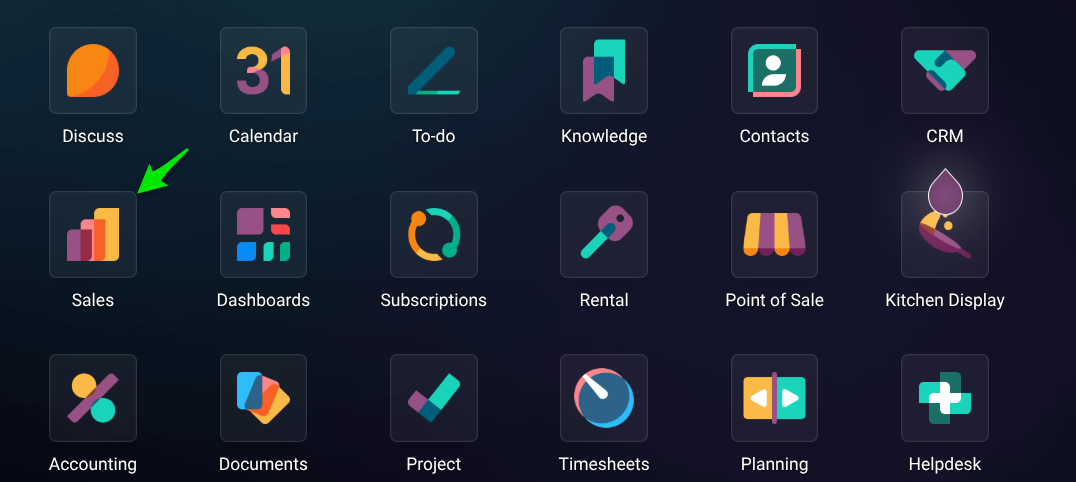
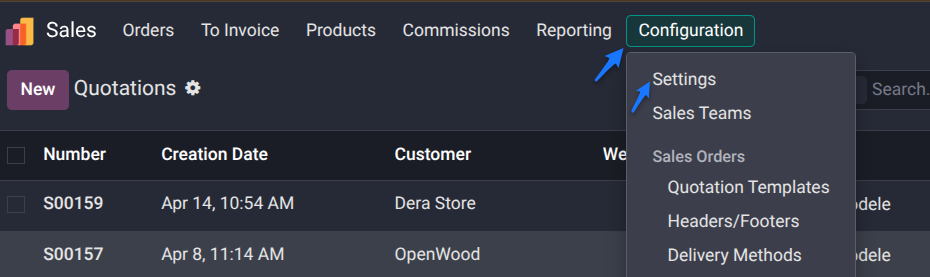
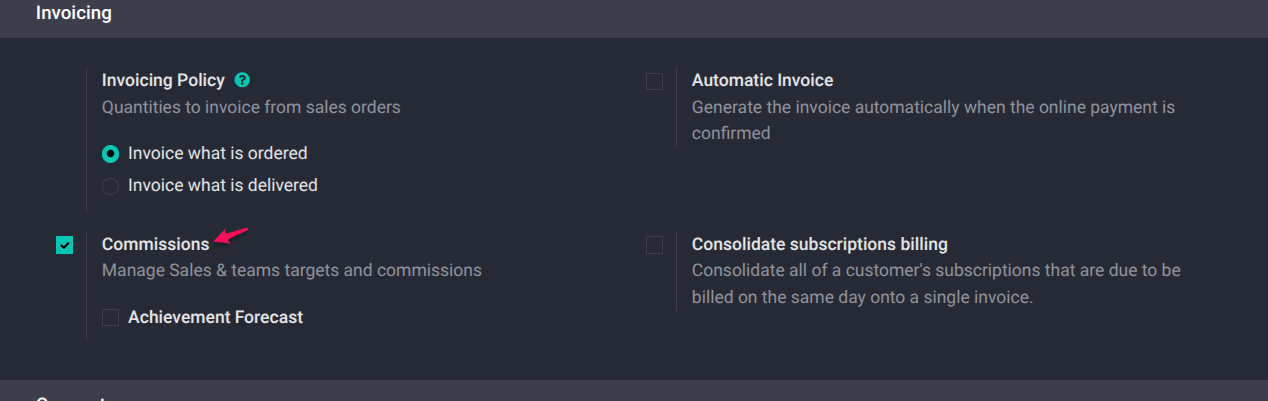
Enable the Commissions Feature
Go to:
Sales → Configuration → Settings
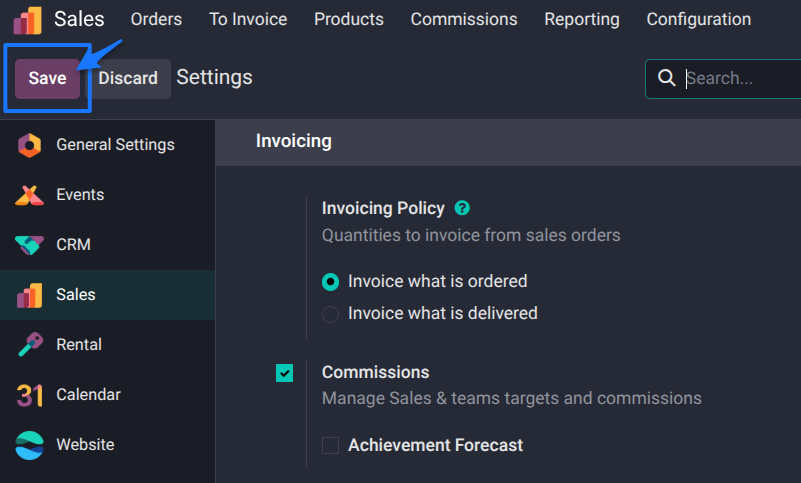
- Enable the Commissions feature
- Save changes
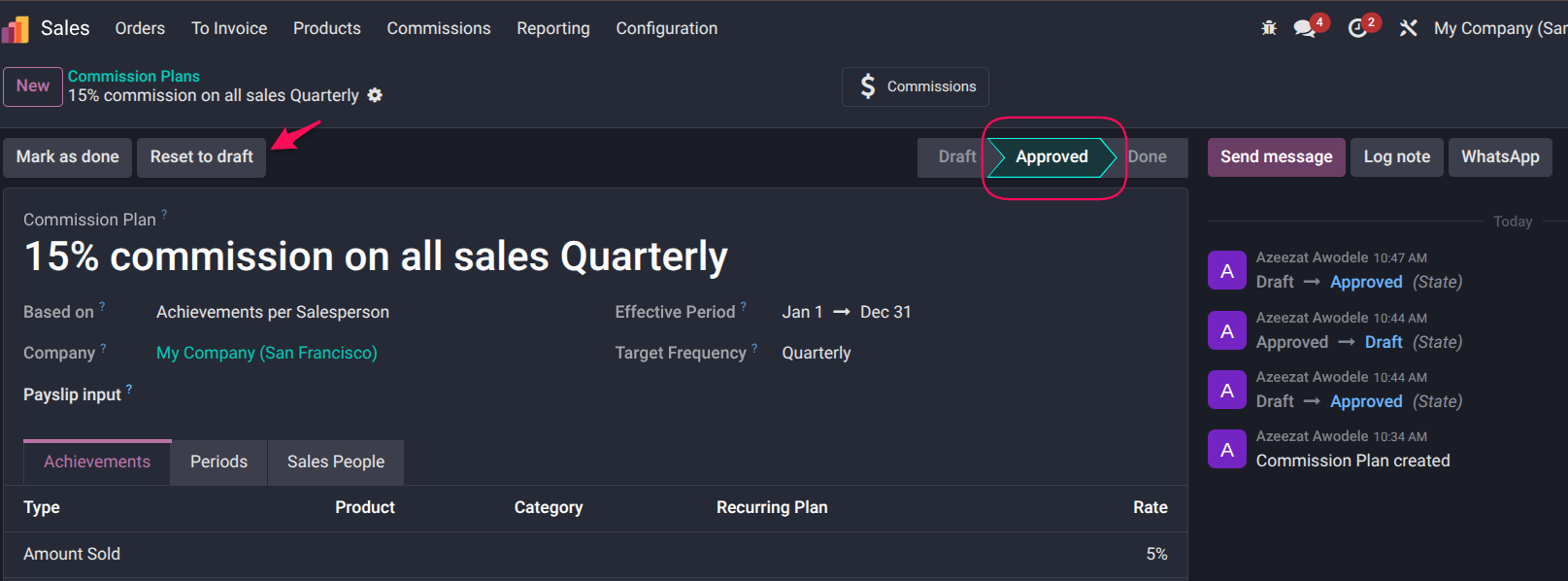
Create a Commission Plan
Navigate to:
Sales → Commissions → Commission Plans
- Click New

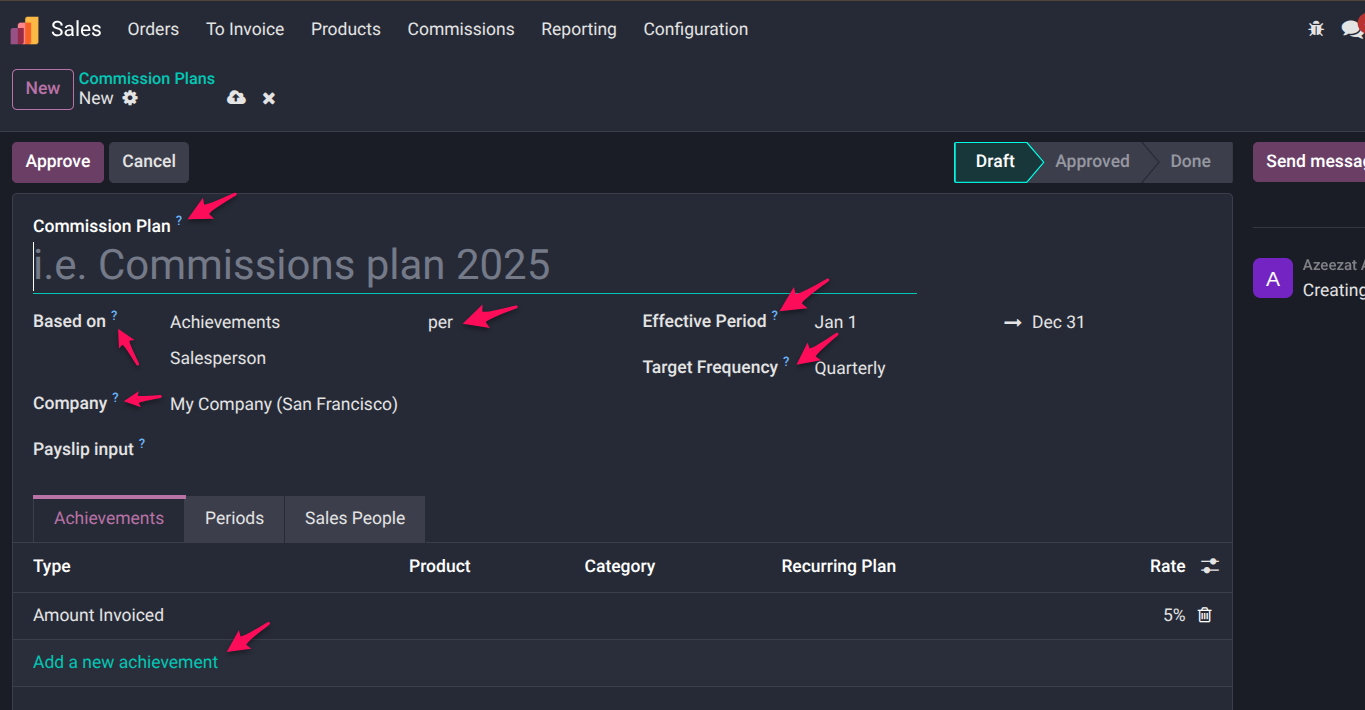
Basic Commission Plan Configuration
Fill in the following:
- Commission Plan Name
Example: Monthly Revenue Commission - Based On → Select “Achievements.”
This is critical for actual sales-based commissions - Per
- Salesperson OR
- Sales Team
- Effective Period
Define start and end dates - Target Frequency
Monthly/Quarterly/Yearly
Define Achievement Metrics (Core Setup)
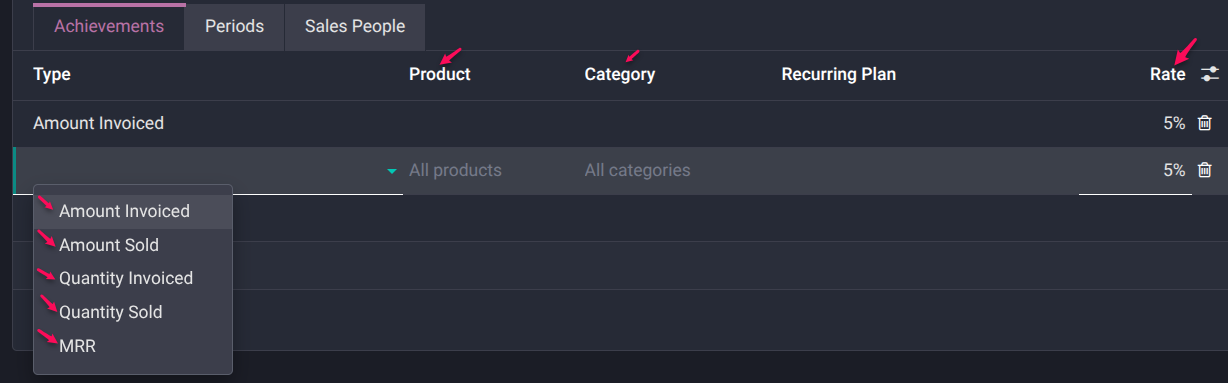
Go to the Achievements tab:
Click → Add a new achievement
Then configure:
Metric Options
- Amount Sold → Total confirmed sales value
- Amount Invoiced → Total invoice value (recommended)
- Quantity Sold → Units sold
- Quantity Invoiced → Units delivered & billed
- Margin → Profit-based commission
- MRR → Subscription revenue
Example Setup
To pay 5% commission on revenue:
- Metric → Amount Invoiced
- Commission Rate → 5%
Assign Salespeople
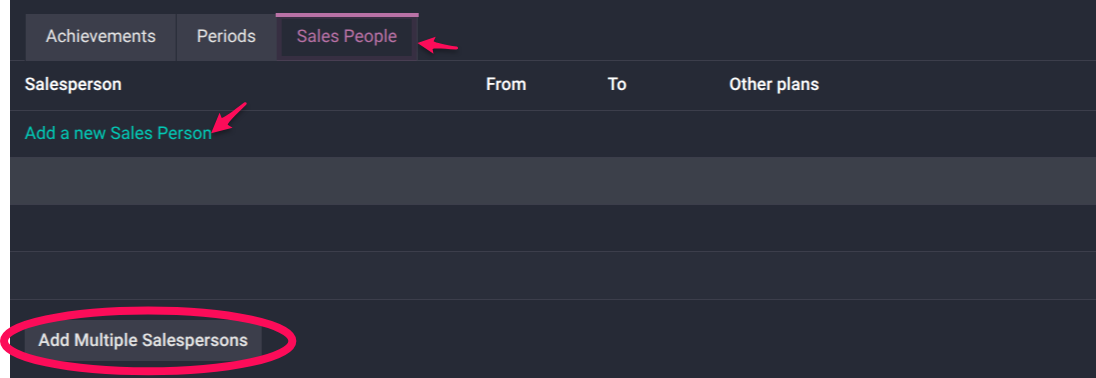
Go to the Sales People tab:
- Add individual users
- Or assign a full sales team
Approve the Commission Plan
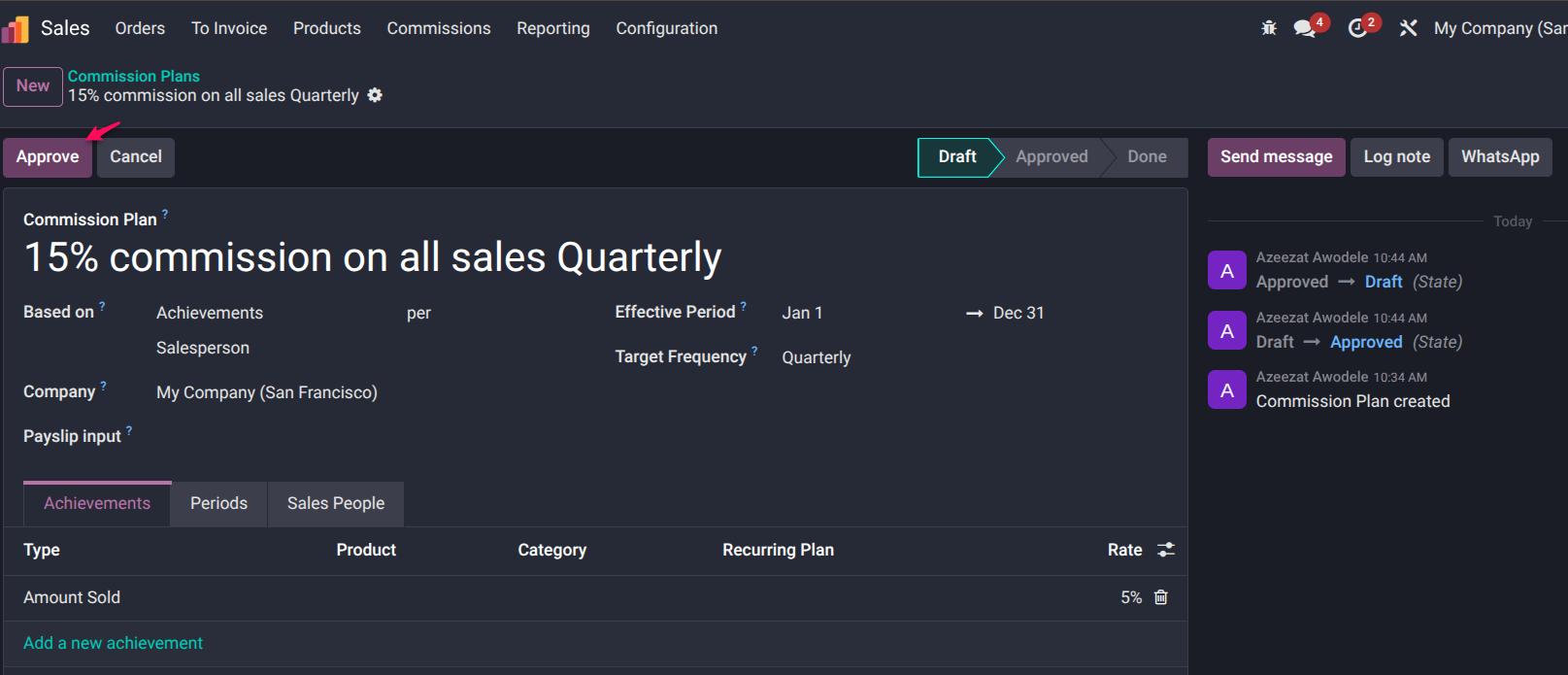
- Review configuration
- Click Approve
Note:
- Once approved, the plan cannot be edited directly
- You must Reset to Draft to make changes
We also created a step-by-step video guide for creating and automating sales commissions in Odoo.
How Odoo Calculates and Tracks Commissions
Once your plan is active:
- Odoo automatically tracks performance
- Every validated sale or invoice updates commission data
- Commissions are calculated based on:
- Selected metric
- Defined rate
- Assigned salesperson
Example:
If your plan is:
- Metric → Amount Invoiced
- Rate → 5%
Every confirmed invoice generates commission automatically.
These are then aggregated into reports for tracking and payout.
Where Stock Availability Comes In (And Where It Doesn’t)
Not Used By Default
- Stock levels do NOT affect commission calculation
- Odoo does not check inventory before calculating commission
Where It Indirectly Matters
Stock may affect:
- Delivery timelines
- Invoice timing
- Revenue recognition
But not commission logic itself.
Can You Combine Sales + Stock Conditions?
Yes— but not out of the box.
If your business requires logic like:
“Pay commission only if stock is available or delivered.”
You will need:
- Custom automation
- Workflow rules
- Odoo Studio or developer customization
Best Practice: Align Commission with Business Goals
Choose your commission basis carefully:
Use Amount Invoiced
- Most accurate for revenue tracking
- Avoids premature commission payments
Use Margin-Based Commission
- Encourages profitability
- Prevents discount-heavy selling
Use Hybrid Models (Advanced)
- Commission on sale
- Bonus on delivery or payment
Common Mistakes to Avoid
- Expecting commissions to depend on stock
- Using “Quantity Sold” without considering delivery
- Not defining clear commission rules
- Skipping testing before approval
FAQs
Can Odoo calculate commissions based on stock availability?
No. Odoo calculates commissions based on sales metrics like revenue, quantity, or margin—not stock levels.
Why is my commission calculated before delivery?
Because your plan is likely based on sales orders or invoices, not delivery.
What is the best metric to use?
Amount Invoiced is most reliable for real revenue tracking.
Can I customise commission logic?
Yes—advanced scenarios (like stock-based conditions) require customization.
Final Thoughts
Odoo’s commission system is designed to reward sales performance—not inventory conditions.
Understanding this distinction is key to avoiding confusion and setting up a system that truly reflects your business goals.
If your commission structure is not aligned with how your business operates, you’ll continue to experience inconsistencies.
Struggling to configure commissions correctly in Odoo?
At erpSOFTapp, we help businesses design commission systems that align with real-world operations—whether based on revenue, margin, or advanced business rules.
Speak to an expert today and get your commission setup right the first time.